
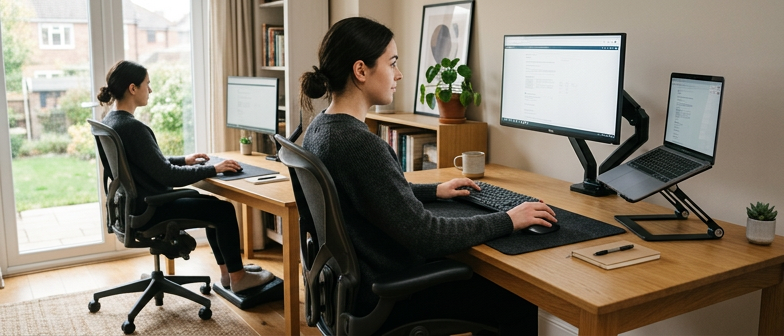
Core Principles of an Ergonomic Desk Setup
At the heart of ergonomic desk setup essentials is arranging your workstation so your body stays in neutral, relaxed positions while you work. Any practical workstation setup checklist starts with posture: your head balanced over your shoulders, wrists straight rather than bent, and your back supported so you are not forced to lean forward. When the desk, chair, and equipment are aligned with your body instead of the other way around, muscles and joints are under less strain, which helps reduce discomfort over time. This approach fits the task to the person, instead of expecting you to adapt to an awkward environment.
Comfort at a desk also depends on how you use the space. Varying tasks, changing sitting positions or standing during the day, and taking short movement or eye breaks all support sustainable, ergonomic work. The goal is to avoid staying fixed in one posture by making small adjustments easy, such as shifting your chair or repositioning your keyboard without effort. When these habits are combined with a simple checklist for how you sit, where you place equipment, and how long you stay in one position, desk work becomes less physically demanding and easier to maintain over time.
Adjusting Monitor Height and Viewing Distance
A core part of ergonomic desk setup essentials is positioning your monitor so your neck and eyes stay in a neutral, relaxed posture. For most people, the top of the screen should sit at or slightly below eye level when you sit upright, so your gaze falls naturally toward the middle of the display without tilting your head. Place the monitor directly in front of you to avoid twisting, and use a height-adjustable stand or riser if the screen is too low. If it is too high, lower the screen or adjust your chair so you are not looking upward for long periods, making it easier to maintain balanced posture and reduce neck strain.
Viewing distance is just as important as monitor height adjustment, because placing the screen too close or too far can cause eye fatigue and awkward positions. A useful starting point is roughly arm’s length, then fine-tune until text and images are clear without squinting or leaning forward. When using multiple screens, keep them at similar heights and distances, with your main display centered and others slightly angled to limit repeated head turning. Adjust brightness and contrast so the screen is easy to read in your usual lighting, reduce glare by repositioning the monitor, and revisit your setup periodically, especially when different people share the workstation.
| Checklist Item | Practical Action | Comfort Impact | When To Revisit |
|---|---|---|---|
| Top of screen near eye level | Raise or lower monitor with stand or riser | Helps keep neck in neutral alignment | When posture changes or chair height is adjusted |
| Monitor directly in front | Center screen to avoid twisting torso | Supports balanced head and shoulder position | When desk layout or tasks are rearranged |
| Viewing distance around arm’s length | Slide monitor closer or farther for clear text | Reduces squinting and forward leaning | When font size, glasses, or visual needs change |
| Matching height for multiple screens | Align display tops and angle secondary screens | Limits repeated head turning | When adding, removing, or replacing monitors |
| Manage glare and brightness | Adjust screen tilt, brightness, and desk lighting | Supports relaxed eye focus | When room lighting or time of day shifts |
Fine-Tuning Screen Position for Comfort
After you have adjusted monitor height so the top of the screen is roughly at or slightly below eye level, fine-tuning screen position focuses on tilt, angle, and layout. A slight backward tilt can help reduce reflections and make text easier to read without needing to lean forward. If you use more than one display, placing the primary monitor directly in front of you and secondary screens close by at a similar height supports a balanced posture and fits smoothly into an ergonomic desk setup essentials approach. People with glasses, bifocals, or specific visual needs may need to lower the screen or adjust the viewing distance, and noting these preferences in a personal workstation setup checklist can make the arrangement easier to maintain over time.
Keyboard, Mouse, and Input Device Positioning
Keyboard and mouse placement is a core part of ergonomic desk setup essentials because it shapes how your shoulders, arms, and wrists are supported. Keep the keyboard centered in front of you, with the main keys aligned to your midline so you are not reaching or twisting to type. Place it close enough that your elbows rest near your sides at roughly a right angle and your shoulders stay relaxed. A flat keyboard or slight negative tilt helps keep wrists straight instead of bending upward, supporting a neutral hand position during typing.
For comfortable mouse use, keep it on the same level as the keyboard and close enough that your arm moves in a short, natural arc instead of stretching outward. Try to keep the wrist mostly straight, letting movement come from the elbow and shoulder rather than constant wrist bending. If you often switch between keyboard and mouse, place the mouse next to the keyboard edge to cut down on repeated reaching. Some people reduce physical strain by raising mouse sensitivity so smaller motions still move the pointer efficiently while maintaining everyday accuracy.
Think about how all input devices fit into your overall ergonomic desk setup. Frequently used items such as shortcut keypads, trackballs, or touchpads should sit within easy reach where your forearms can stay supported. Take brief breaks to drop your arms, straighten your fingers, and reset your posture so you do not gradually slip into strained positions. By regularly checking that your input tools stay close, aligned with your body, and operated with light contact rather than tight gripping, you create a workstation that feels more comfortable over long workdays.
Maintaining Neutral Hand and Wrist Posture
Keeping your hands and wrists neutral is a core part of ergonomic desk setup essentials and helps reduce strain during computer work. Aim for forearms roughly parallel to the floor, with wrists straight rather than bent in any direction. Adjust keyboard and mouse position so they are at about elbow height and close enough that you do not reach forward, allowing your upper arms to rest by your sides. A flat or slightly negative-tilt keyboard tray supports alignment, and a mouse at the same height as the keys lets you move from typing to pointing without twisting. As a simple item on your workstation setup checklist, pause regularly to check that hands float over the keys, wrists follow the forearms, and fingers—not wrists—do most of the movement.
Chair Support and Desk Lighting Basics
Chair support features are central to ergonomic desk setup essentials because they help you maintain a stable, comfortable posture. A good chair lets you adjust seat height so your feet rest flat and your knees align roughly with your hips. A backrest with a gentle curve supports the natural shape of the lower spine, and adjustable recline angle and tension allow slight leaning without losing alignment over the hips. A seat that is wide enough, with rounded front edges, reduces pressure under the thighs, while height and width adjustable armrests help keep shoulders relaxed instead of hunched. When these chair elements work together, they promote neutral joint positions and make it easier to work at the desk without unnecessary strain.
Desk lighting basics focus on clear, comfortable visibility with minimal glare and harsh contrast. For computer tasks, moderate, even brightness from a mix of ambient room light and a task lamp is usually more comfortable than very dim or intense light. Position light sources to the side or slightly in front of you rather than directly behind the monitor to limit reflections on the screen. A lamp with a shade or diffuser should be angled so light falls on documents and equipment instead of directly into your eyes. Strong daylight from windows behind or directly in front of the screen can cause glare or shadows, so blinds or curtains may be needed to soften light and keep the workstation easy to see.
Q&A
-
What are the core principles of an ergonomic desk setup?
Keep your body in neutral alignment: head over shoulders, back supported, elbows near your sides, and wrists straight. Arrange the desk, chair, and equipment around your posture, not the other way round. -
How should I adjust my monitor height and distance?
Place the top of the screen at or slightly below eye level, directly in front of you. Keep it roughly an arm’s length away, then fine‑tune based on readability and neck comfort. -
What is a good position for my keyboard and mouse?
Center the keyboard with your body, at about elbow height, close enough that elbows stay bent around 90 degrees. Keep the mouse at the same height, beside the keyboard, to avoid reaching or twisting. -
Which chair support features matter most for comfort?
Look for adjustable seat height, lumbar support, gentle recline, and armrests that can be set so your shoulders stay relaxed. Your feet should rest flat, with knees roughly level with your hips. -
What should a basic workstation setup checklist include?
Confirm monitor height and distance, neutral arm and wrist posture, supportive chair adjustments, balanced desk lighting that reduces glare, and simple cable management to keep the work area clear.